 convert.express
Your AI assistant can transcribe audio and video for you once you add one address to it: https://convert.express/mcp. You don't need an API key or an account. After that you ask in plain words ("transcribe this and give me the action items") and the assistant does the rest: it uploads the file, waits for the job and hands you the text, subtitles or summary.
This guide shows the setup for each popular assistant, a real run from start to finish, and prompts you can copy.
What MCP is, in one paragraph
MCP (Model Context Protocol) is an open standard that lets an AI assistant use tools on an outside service. You add a server address once. From then on the assistant can see what the server offers, picks the right tool for your request and reads the result back to you. convert.express runs an MCP server with tools to transcribe a link or a file, fetch the results, summarize, translate, make a share link and delete a job.
Set it up
Every assistant takes the same address. Only the place where you paste it differs.
Claude Code
Run one command in your terminal, then check that it connected:
claude mcp add --transport http convert-express https://convert.express/mcp
claude mcp list
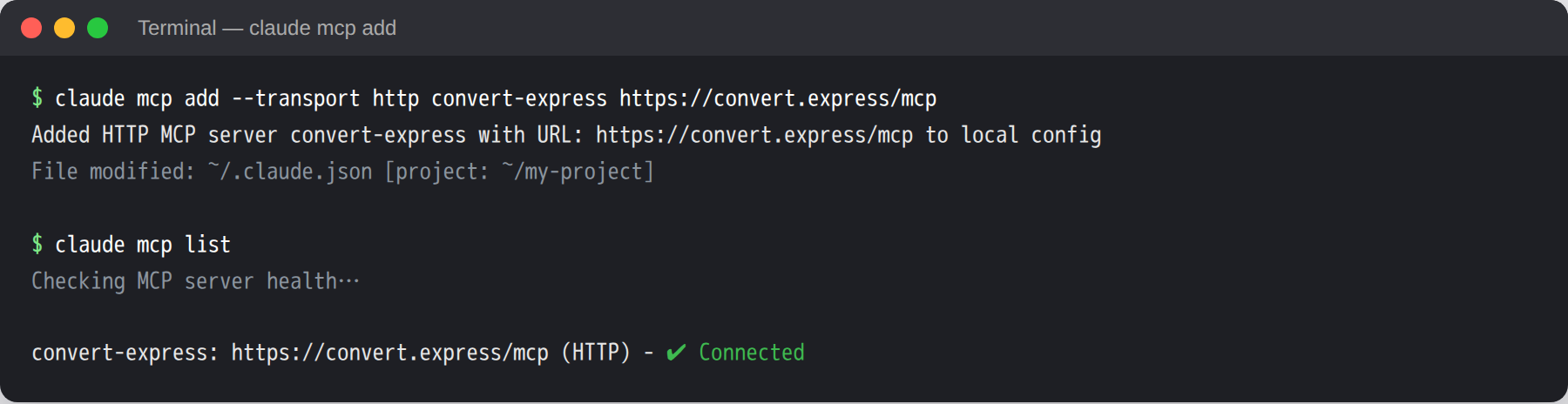
The server is added for the current project. Add --scope user to have it in every project, or --scope project to write a .mcp.json file your team can commit.
Claude (web and desktop app)
Open Settings → Connectors, choose Add custom connector, name it convert.express and paste https://convert.express/mcp. Leave the authentication fields empty. In a new chat, make sure the connector is switched on in the tools menu.
ChatGPT
Custom MCP servers need developer mode, which OpenAI offers on its business and education plans (on some other plans only in a read-only form). Turn developer mode on in settings, then create a custom MCP app with https://convert.express/mcp and no authentication. OpenAI renames these menus from time to time, so if the names differ, look for a custom app, connector or MCP server option.
No developer mode? For YouTube videos and Simplecast episodes, ChatGPT can open this link instead, with the video link at the end:
https://convert.express/transcript?url=https://www.youtube.com/watch?v=VIDEO_ID
Codex (CLI and the ChatGPT desktop app)
Add this to ~/.codex/config.toml:
[mcp_servers.convert-express]
url = "https://convert.express/mcp"
Codex runs commands in a sandbox without network access, so the first upload of a file from your computer fails and Codex asks you to allow it. To skip that question, turn on network access for the sandbox. This applies to every command Codex runs there:
[sandbox_workspace_write]
network_access = true
After changing the config, quit and reopen Codex and start a new chat. A chat that is already open keeps the old settings.
Cursor
Add this to ~/.cursor/mcp.json (all projects) or .cursor/mcp.json (one project):
{
  "mcpServers": {
    "convert-express": { "url": "https://convert.express/mcp" }
  }
}
VS Code
Add this to .vscode/mcp.json:
{
  "servers": {
    "convert-express": { "type": "http", "url": "https://convert.express/mcp" }
  }
}
Any other MCP client that speaks Streamable HTTP works the same way. The server needs no extra headers.
Anonymous or signed in
The plain address, https://convert.express/mcp, works without an account. The first job gives your assistant a private key, and it uses that key to keep your jobs together.
If you'd rather have jobs land in your convert.express dashboard, use https://convert.express/mcp/account instead. The first time the assistant uses it, your browser opens the convert.express sign-in page. Sign in and allow access. In Claude, add it as a custom connector and leave the OAuth fields empty. In Claude Code, add it with claude mcp add as above, then run /mcp and choose to authenticate.
Signed-in jobs use your own free daily minutes. The assistant only sees the jobs it started, not your other transcripts. You can manage or disconnect it on your dashboard under the Bots tab.
A real run
Here is an actual Claude Code session from October 26, 2026. The prompt:
Transcribe this recording and give me a 3-bullet summary plus action items:
https://upload.wikimedia.org/wikipedia/commons/5/50/Jfk_rice_university_we_choose_to_go_to_the_moon.ogg
That link points to John F. Kennedy's 1962 "We choose to go to the Moon" speech, a public-domain recording on Wikimedia Commons. Claude made one transcribe_url call with summary and action items turned on. Then it checked the job with get_job about every 20 seconds until it was done. The 17.7-minute speech came back in roughly three minutes:
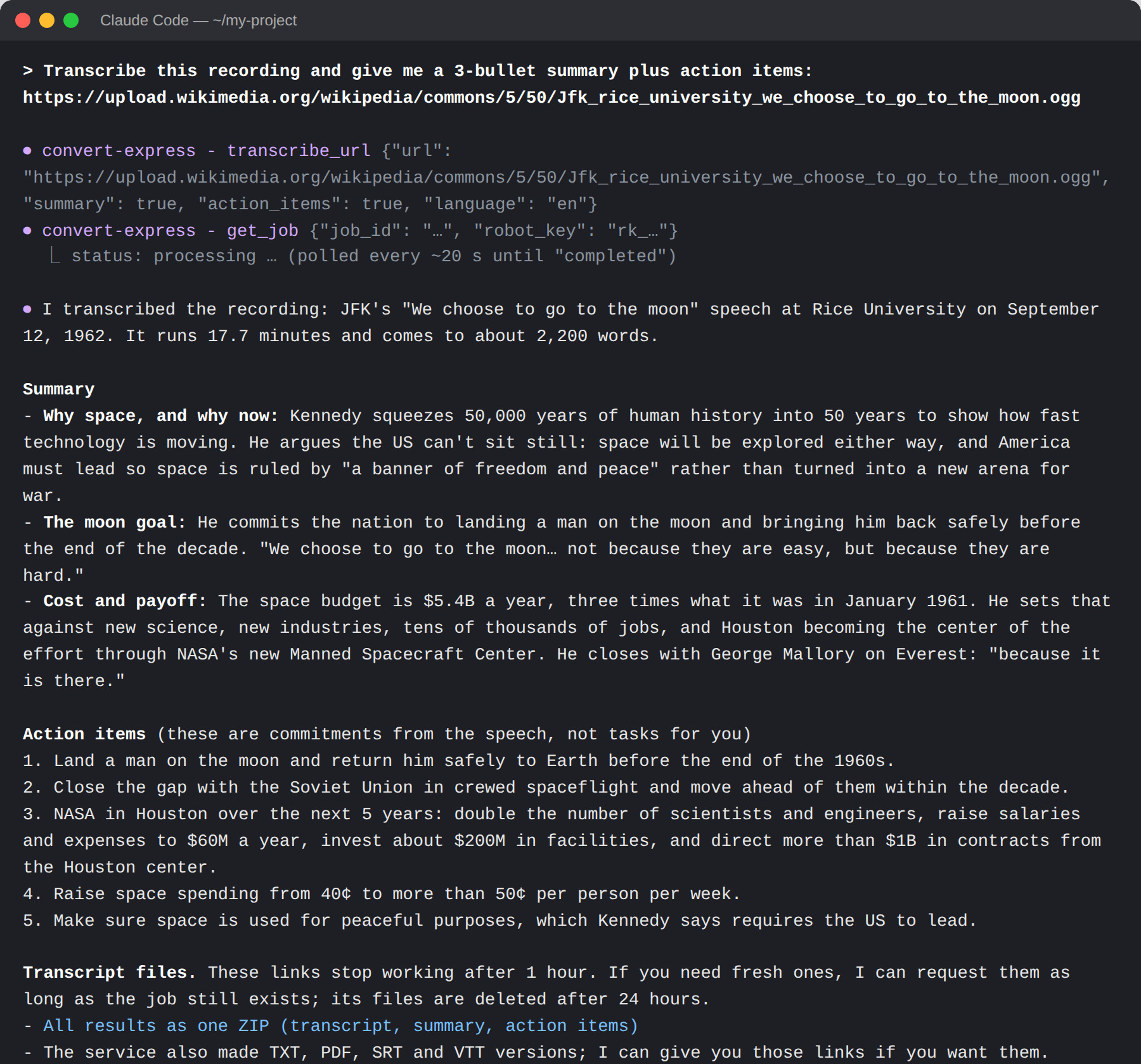
Along with the summary, the job made TXT, PDF, SRT and VTT files and one ZIP with everything. The private key, job ID and download token are cut from the screenshot.
Prompts to try
You don't need special wording. Say what you want and what format it should be in.
| You want | Ask |
|---|---|
| A transcript of a video | Transcribe this YouTube video and give me the action items: <link> |
| A file from your computer | Transcribe ~/Downloads/interview.m4a |
| Who said what | Transcribe interview.m4a with speaker labels and timestamps |
| Subtitles | Make SRT subtitles for ~/Videos/talk.mp4 |
| Subtitles in another language | Make German subtitles for ~/Videos/talk.mp4 |
| A summary later | Summarize the meeting I transcribed earlier and list the action items |
| Something to send | Give me a share link with the results |
| A specific model | Transcribe this with Gemini 3.5 Transcribe: <link> |
| A price first | How much would a 2-hour recording cost? |
| Cleanup | Delete that job now |
A few tips:
- Use a direct file link, a YouTube link or a Simplecast episode link. A web page that only embeds a player won't work.
- Ask for everything in the first message (summary, action items, speakers). It saves a second round.
- Assistants that run commands, like Claude Code, Codex and Cursor, upload local files themselves. Before they do, they tell you the file goes to convert.express, and some ask permission the first time. A chat app that can't send the file gives you an upload link instead: open it, pick the file, and the transcription starts.
Free use and paying
Assistants get some free use every day. Past that, the assistant shows you a preview (the first 100 words), the price and a payment link. Open the link, sign in and pay: €0.02 per minute, €0.50 minimum for a card payment, no subscription. Then the assistant fetches the full transcript.
After that first payment, the assistant is linked to your account, so its next jobs go straight into your dashboard. It can also pay for long recordings from your prepaid balance once you switch that on for it under Bots. The daily limit starts at €5, and you can change it or set it to 0. Full pricing is on the pay as you go page.
Privacy
Files and results are deleted 24 hours after the last activity, or right away if you ask the assistant to delete the job. Your files are never used to train AI models. Each call from an assistant (IP address, client name, which tool, when) is logged for 90 days to stop abuse. Transcript text is never logged. Details are in the privacy policy.
When something goes wrong
| Problem | Fix |
|---|---|
claude mcp list says the server failed |
Add it again with --transport http and the exact address |
| The assistant ignores the tools | Switch the connector on in this chat, or start a new chat |
| A local upload fails with "Could not resolve host" | Allow network access for the upload when asked (Codex: network_access = true) |
| The download link stopped working | Links last one hour. Ask the assistant for fresh ones |
| The job is gone | Jobs are deleted after 24 hours. Transcribe again |
Found a bug or missing a feature? Ask your assistant to use send_feedback. A person reads every message. The full tool list is on the AI agents page.